In this article
Click the SmartHub icon on the Horizons Home page, or open Professional Authoring, and in the Quick access menu on the left side of the page click SmartHub.
The Hubs list page opens.
Click Create hub in the upper-right corner of the page.
The Create hub overlay opens.
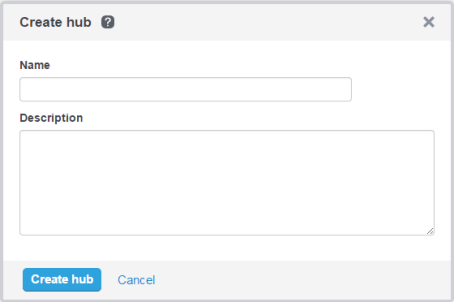
Figure 1 - The Create hub overlayGive your new hub a name.
Most users will only have access to one company - their own. If you have access to more than one company then a Company field will be visible. In this case, select the company to which the hub is to be linked.
If required, type a brief description of the hub into the Description field for future reference. This description will be visible in the Hub list.
Click Create Hub.
The hub is created and the Hub Designer page for the hub opens.
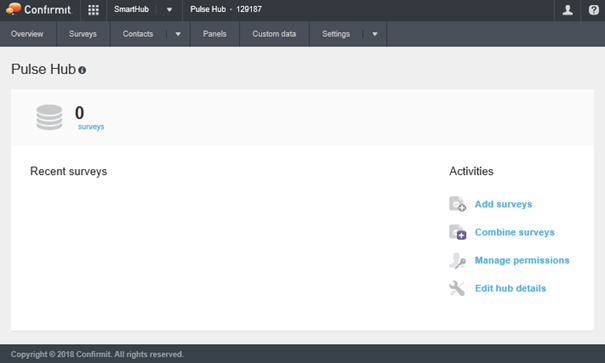
Figure 2 - The Hub Designer > Overview page
You can now add surveys, set access permissions, and generally set up the hub ready for use.
Make a note of the hub’s Id number, shown in the toolbar. You will need this number to link the end user list to the hub.
Refer to the SmartHub documentation for further information.