In this article
The library of questions from which the end user will select those that will be sent to the respondents, and on which the Studio report will be based, is a standard survey that is created in Survey Designer or Professional Authoring. This user guide assumes you know how to create surveys using these applications, or that the survey already exists. Refer to the separate Survey Designer User Guide and/or the Professional Authoring documentation for further details.
If you are creating the library survey, a number of points should be noted:
Within the library survey, all the survey questions that are to be available to the users for selection must be gathered in one question library. This is a folder, that must be given the name Questions.
Only single choice, multi choice, information and open text survey question types are available for selection in a Pulse survey and can be placed in the Questions folder.
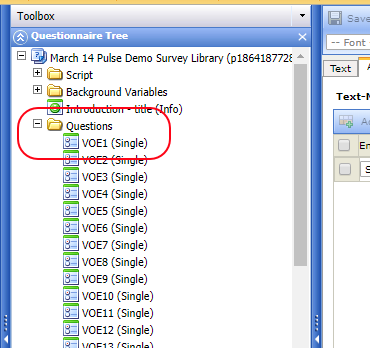
Figure 1 - The Questions folder in the survey
Any questions, folders, scripts etc. that are placed before or after the Questions folder, will be included in all Pulse surveys. There are no restrictions on what you can place outside the Question folder. This can be used for background variables, hidden questions or normal questions that should go to all, and for information nodes that are to be presented before or after the library questions, including for example an 'introduction' page and a 'thanks for participating' page.
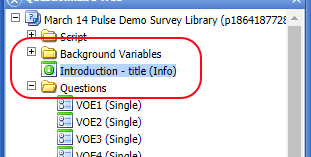
Figure 2 - Background variables and other questions must be outside of the Questions folder
The survey layout used must be Public and Company-specific, so that all users have access to it.
When creating the questions you are recommended to keep the question IDs short and logical as the question IDs are referenced in the program definition to allocate the questions to dimensions and templates.
Survey questions can be translated into multiple languages, these being selected during the initial setup process. The user can then review the created survey via a test link for each language selected for the survey.
Invitation and reminder emails must also be set up within the survey. These will be referred to in the Pulse configuration. The emails will be located in the Invitation and reminder emails folder.
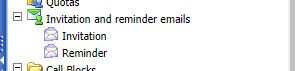
Figure 3 - Invitation and reminder emails