In this article
Configuration of access to end users in Pulse is done by adding the end user list you have created for Pulse (Creating a New End User List) under end user permissions of the report and setting add permissions for the entire list instead of individual end users ("Set View permission for all end users in the list"), and then adding a configuration script to the CDL configuration:
config access {
  portalid: 1234 //this is the enduser list id
//  ssoConfig: "somesite.com"
}
As you see from the commented line, it is possible to configure Pulse to have Single Sign-On (SSO).
The creation of end users can be done in End User Management in Professional Authoring, but it is recommended to create end users from the contact database in SmartHub instead, because that can be automated (you can create, update and remove contacts through FTP uploads to hierarchy management) and will ensure that the surveys created in Pulse are associated with the contact’s hierarchy node, which allows us to define certain types of role-based access to the survey (Role-based Access to Pulse Surveys).
In SmartHub, open the contact database used in your Pulse program, and select "Create end users from contacts" under Settings. There you will be presented with a dialog for selecting an end user list to create users in, and mapping up fields from the contact database to the fields for the end users. You can also set up a filter for a specific value on an open text field in your contact database, in case you don’t want all the employees in the contact database to have access to the Pulse program. This could for example be a field that flags contacts (employees) that are managers.
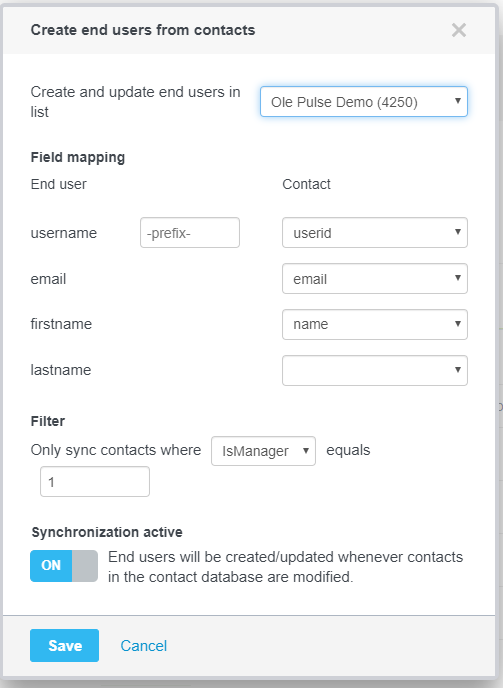
Figure 1 - Creating End Users From Contacts
Once this is set up, end users will automatically be created, updated and removed when there are changes in the contact database.